
2.4 How do I mark Creative Commons licence information inside my content?

Text based content.
Text documents should contain CC markers. These can be in the form of an image or a line of text stating the licence wherever the copyright statement would go. The full URL to the license should also be included.

For example:


Except where otherwise noted, this work is licensed under Creative Commons Attribution-Non Commercial

The abbreviated licence names may also be used. For example, the above text would read
Except where otherwise noted, this work is licensed under CC BY-NC http://creativecommons.org/licenses/by-nc/3.0/

Sample markers can be downloaded from http://wiki.creativecommons.org/CC_markers

Marking CC inside images
A CC marker should be displayed either inside the image or with the image reference. These should ideally be the CC markers but can also be plain text captions.

Marking CC inside audio
There are a couple of ways to do this, however specialist software could be required depending upon your choice. Audacity is an excellent piece of open source software for recording and editing audio.

  1. You could create an audio bumper at the start of your file. This could be a recording of your voice saying “this recording has been created by **AUTHOR NAME** **DATE** and is covered under Creative Commons Attribution licence. Further information can be found at **LICENCE URL**”.

    Further guidance can be found at http://creativecommons.org/podcasting.

  2. You could also place a text marker next to the audio reference inside the simulation.

Obviously the latter option is the easiest but be sure to add all of the necessary information; author, date and CC licence.

Marking CC inside video
The most effective way of illustrating licence information inside video is with a video ‘bumper’ (example below). These can sit at the beginning and end of the footage and state the author information and the licence type. If you are creating your own bumper, be sure to include the CC licence icons and the full URL.
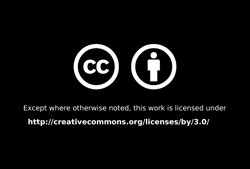
Sample bumpers (licence 3.0) can be downloaded from http://wiki.creativecommons.org/CC_video_bumpers.

Microsoft Office offers a plugin that allows you to place Creative Commons information directly into Word, Excel and PowerPoint documents.

The Creative Commons site offers a wizard based HTML generator which allows you to easily generate HTML code based on your desired license.

dewabos138

dewabos138